I just used Fritzing for the first time and was quite impressed. Will help me a lot as I dissect what I built already and as I design new projects moving forward. I have only scratched the surface using Fritzing application but it is great.
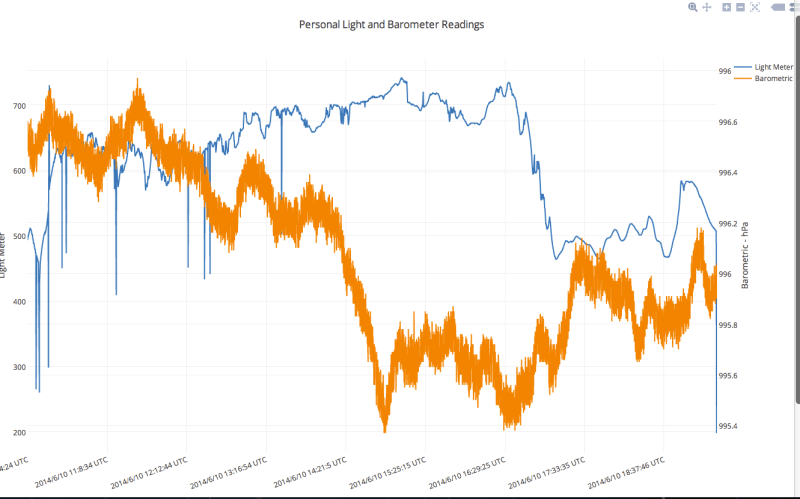
I have played with a few IOT type services for showing off data collected and or sent from Arduino (and other micro controller devices) and have settled on Plot.ly for now.
I have used ThingSpeak and Xively as well but found Plotly worked better for importing from the data logger disk than the others. Xively appear to be more "live update" oriented and not as well geared for file upload of large data sets.
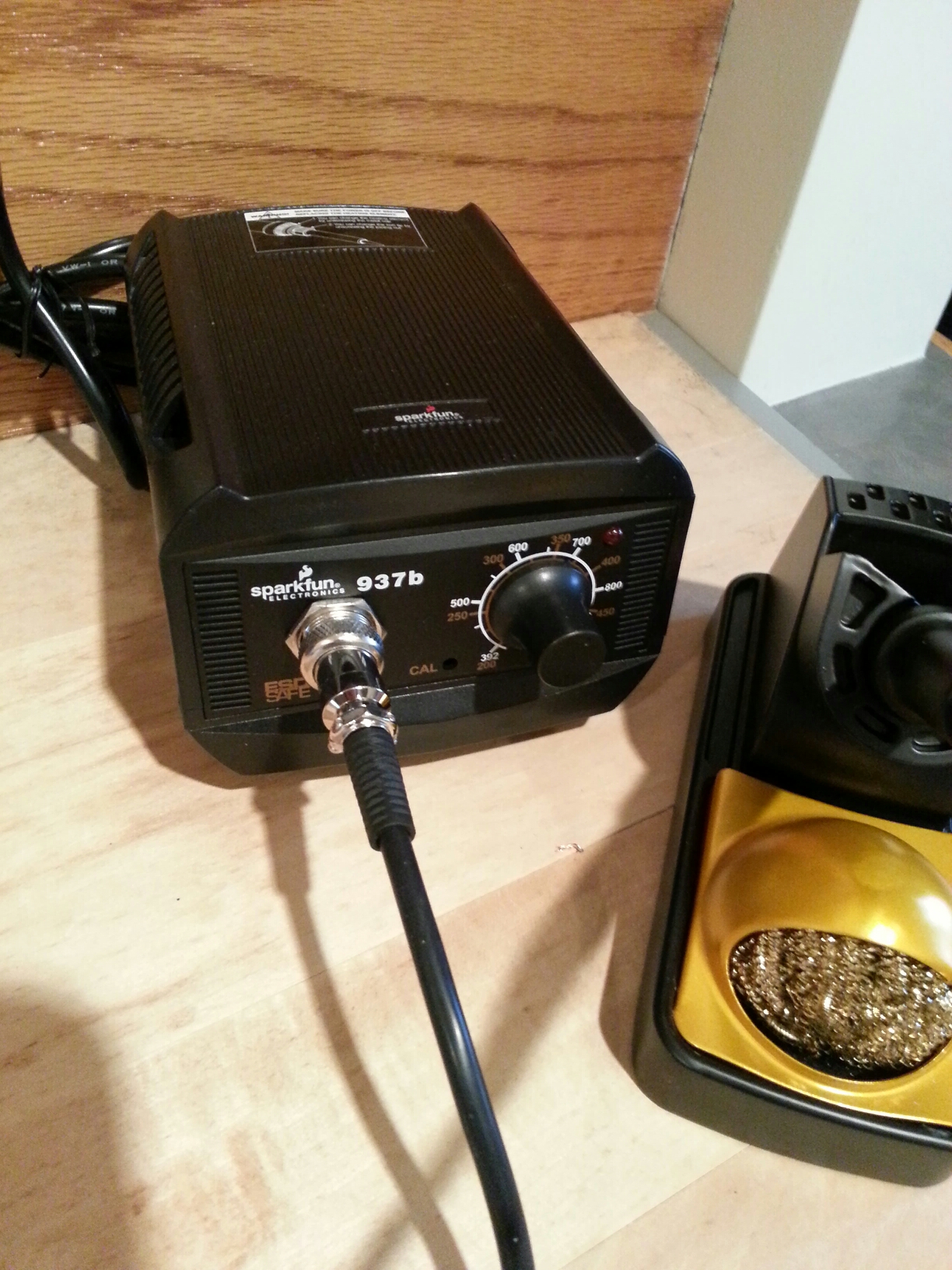
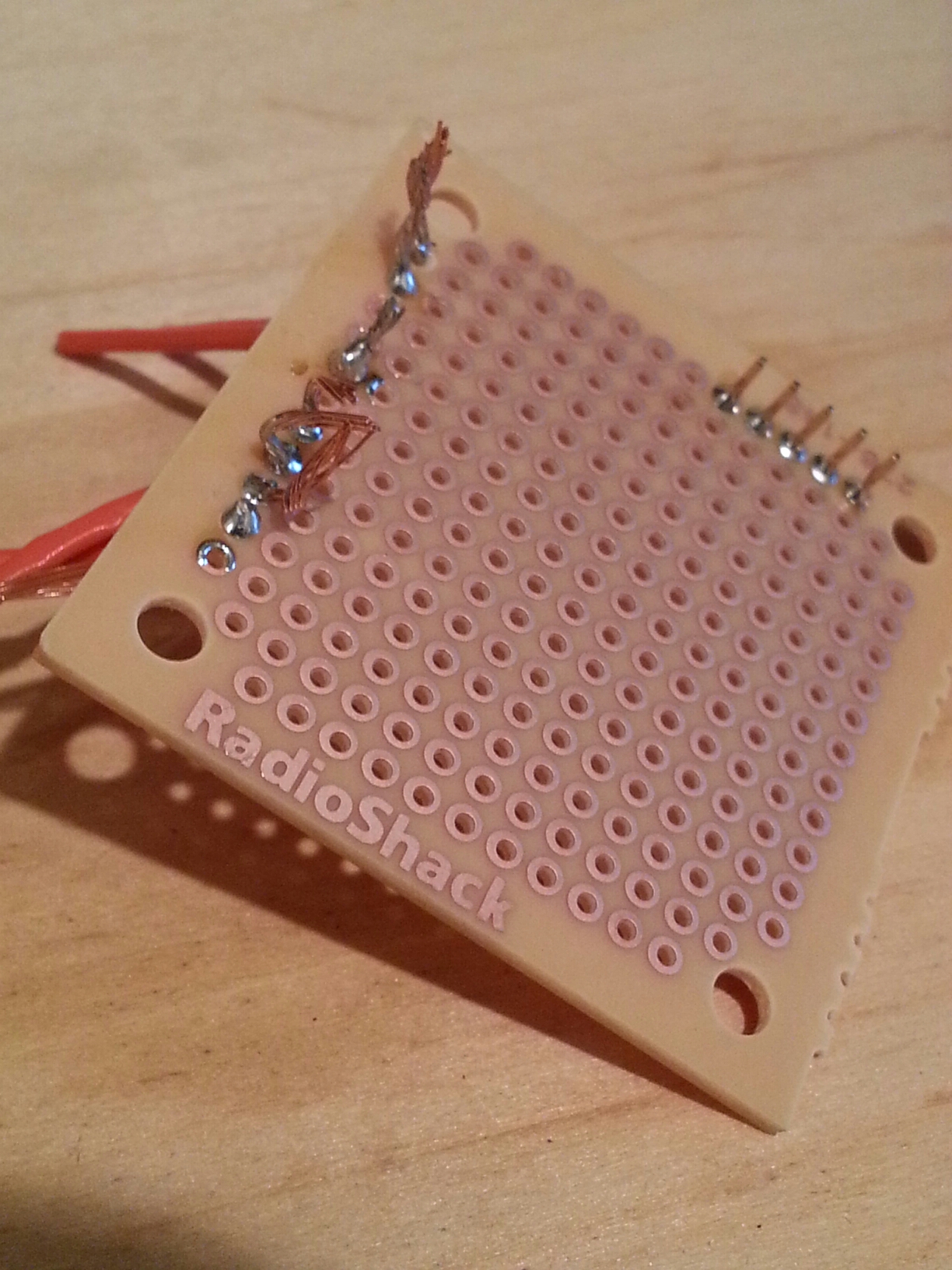
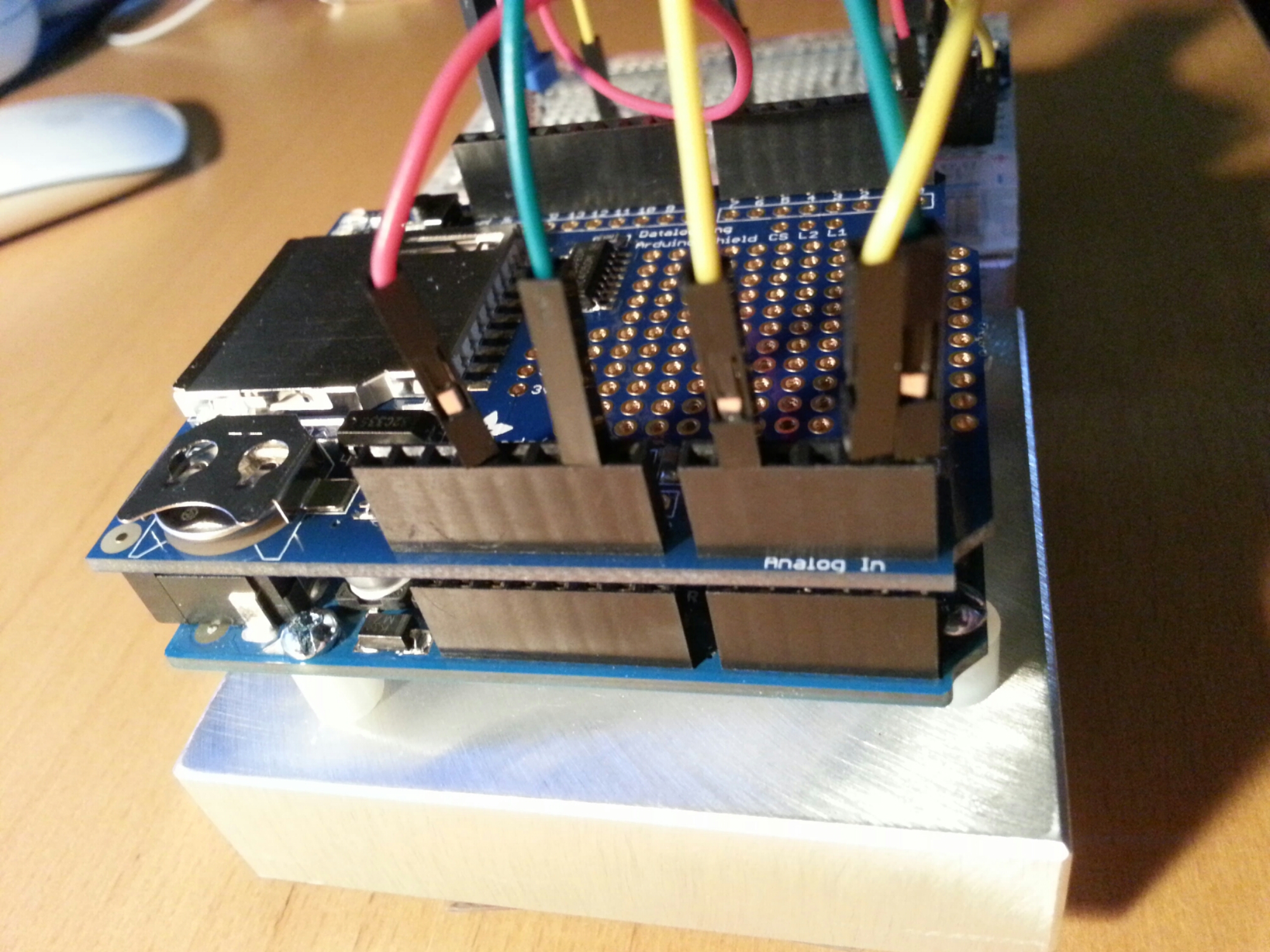
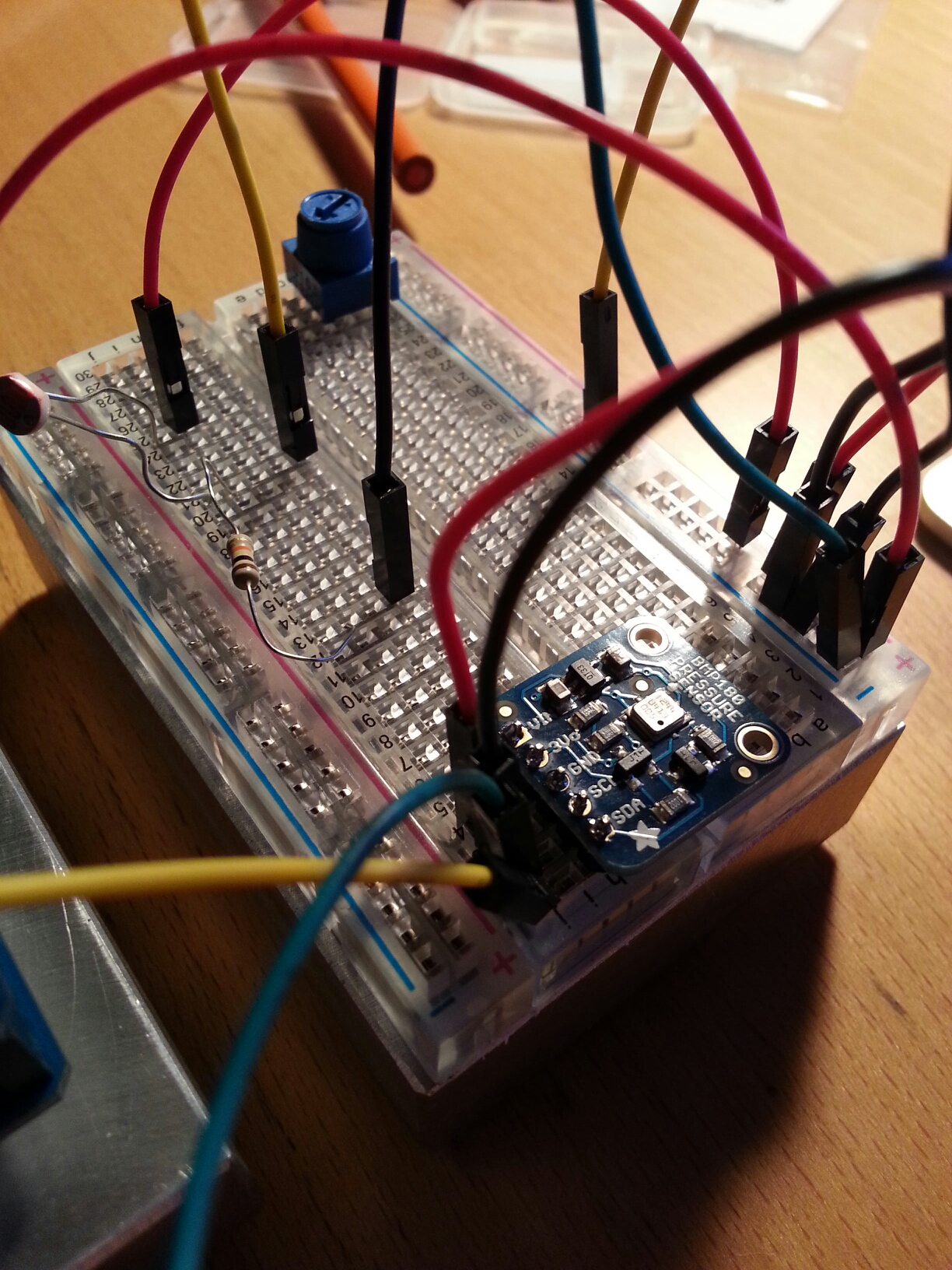
New soldering station "Sparkfun 937b"..a cheap RadioShack board to practice my old soldering skills..an Adafruit datalogger and BMP pressure sensor...tah dah.
Adafruit:
Local MicroCenter had the Spackfun 937B so I grabbed it from there. Works really well, agree with most reviews on the holder (it sucks) but had not problem soldering the headers for the Data Logging shield and the BMP180.
Next steps...use plotly to show results from the logger.
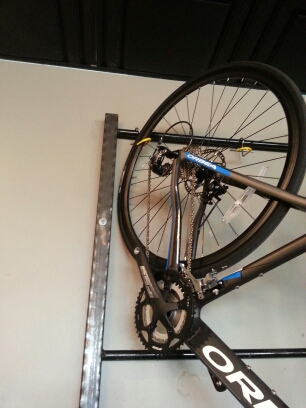
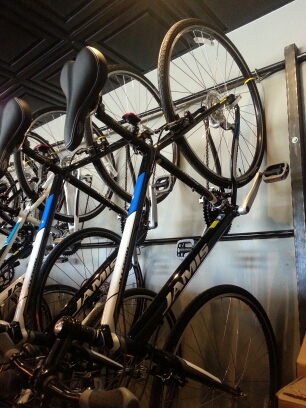
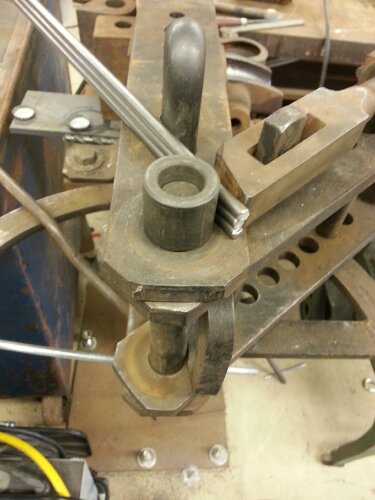
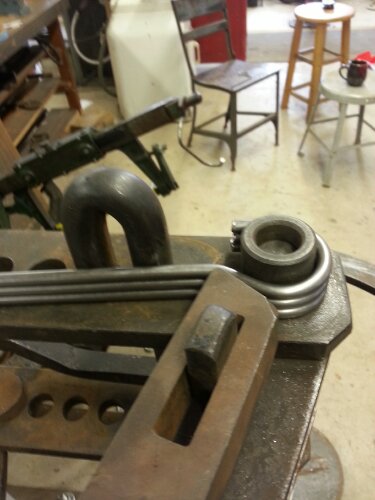
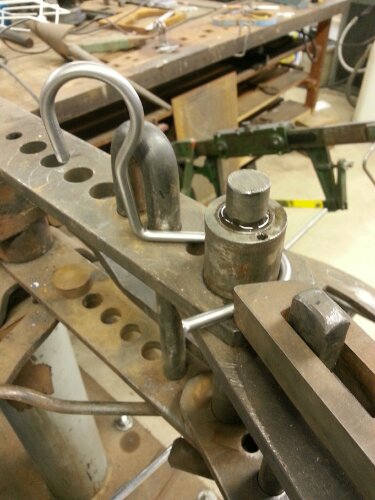
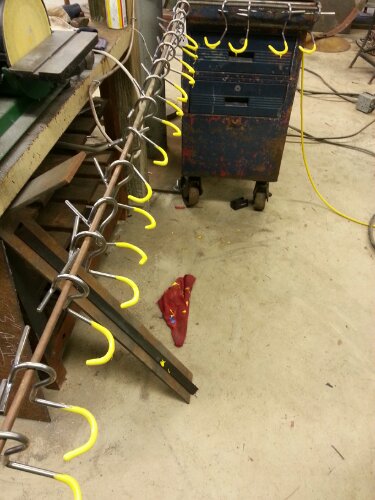
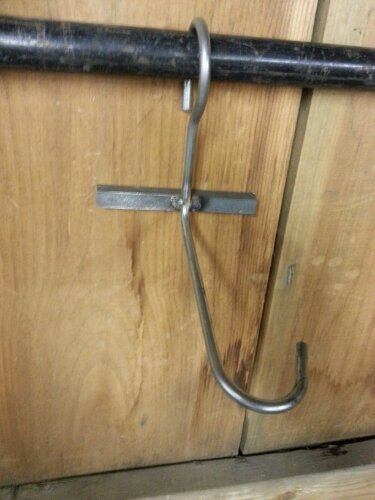
More hooks to make but rack is all in place. The rack is for service and inventory..not for display. Boxes are lined up where the second level of bikes will hang.
After messing around with node.js implementation I found some other services that help collect sensor data from devices. They make it pretty easy to embed charts as well:
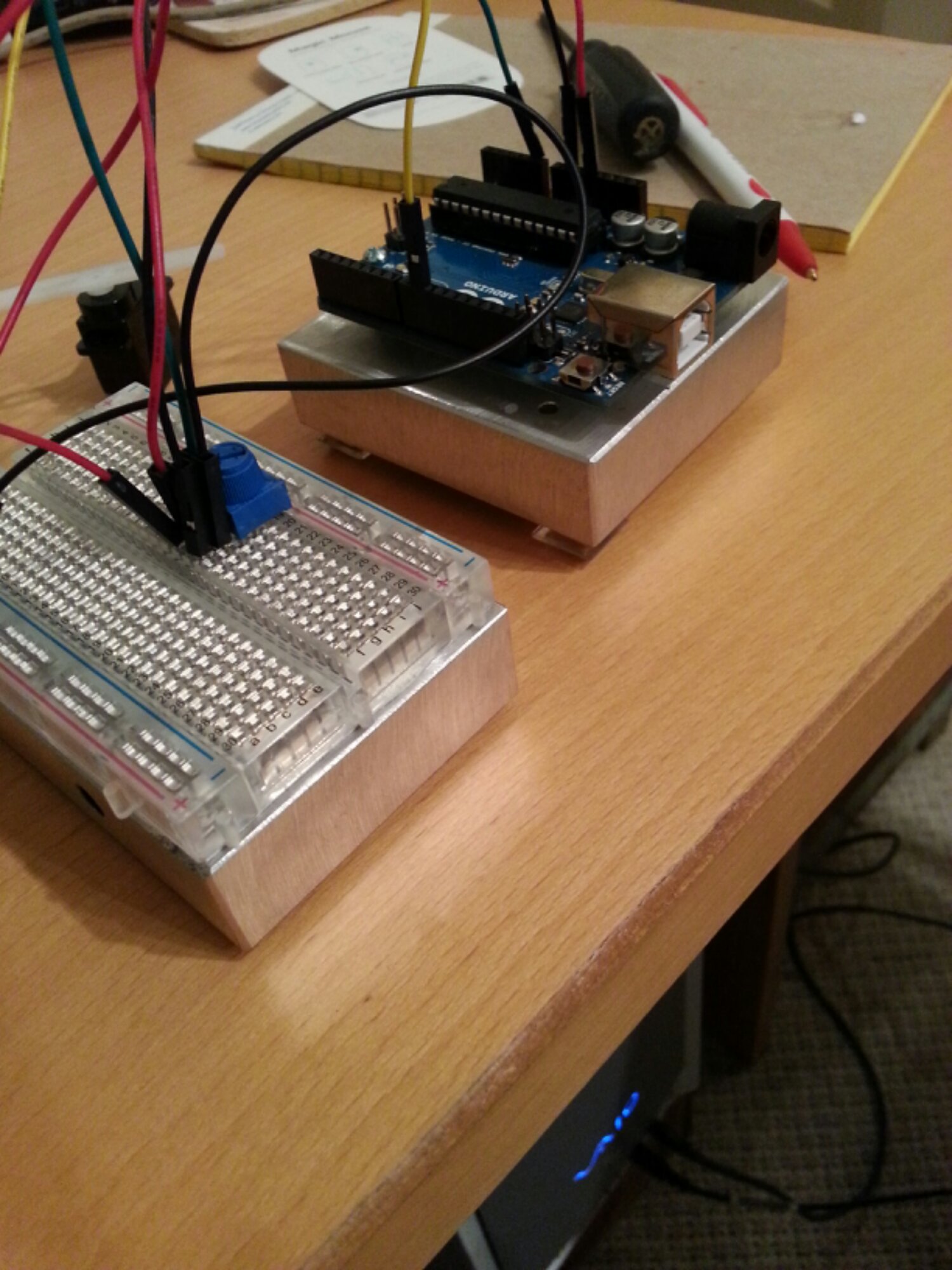
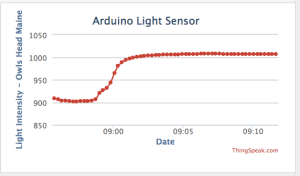
This is a simple light meeter in my living room - connected to ThingSpeak channel. Still getting used to the Charts on ThingSpeak but pretty cool so far. Also will look into there are apps soon enough.
https://thingspeak.com/channels/10735#
ThingSpeak makes it easy: create and account on ThingSpeak and a simple sketch later you have a collector!
Sketch:
[code language="cpp"]
/*
Arduino --> ThingSpeak Channel via Ethernet
The ThingSpeak Client sketch is designed for the Arduino and Ethernet.
This sketch updates a channel feed with an analog input reading via the
ThingSpeak API (http://community.thingspeak.com/documentation/)
using HTTP POST. The Arduino uses DHCP and DNS for a simpler network setup.
The sketch also includes a Watchdog / Reset function to make sure the
Arduino stays connected and/or regains connectivity after a network outage.
Use the Serial Monitor on the Arduino IDE to see verbose network feedback
and ThingSpeak connectivity status.
Getting Started with ThingSpeak:
* Sign Up for New User Account - https://www.thingspeak.com/users/new
* Register your Arduino by selecting Devices, Add New Device
* Once the Arduino is registered, click Generate Unique MAC Address
* Enter the new MAC Address in this sketch under "Local Network Settings"
* Create a new Channel by selecting Channels and then Create New Channel
* Enter the Write API Key in this sketch under "ThingSpeak Settings"
Arduino Requirements:
* Arduino with Ethernet Shield or Arduino Ethernet
* Arduino 1.0 IDE
Network Requirements:
* Ethernet port on Router
* DHCP enabled on Router
* Unique MAC Address for Arduino
Created: October 17, 2011 by Hans Scharler (http://www.iamshadowlord.com)
Additional Credits:
Example sketches from Arduino team, Ethernet by Adrian McEwen
*/
#include <SPI.h>
#include <Ethernet.h>
// Local Network Settings
byte mac[] = { 0xD4, 0x28, 0xB2, 0xFF, 0xA0, 0xA1 }; // Must be unique on local network
// ThingSpeak Settings
char thingSpeakAddress[] = "api.thingspeak.com";
String writeAPIKey = "YOURWRITEAPIKEYHERE"; // YOUR writeAPIKey here
const int updateThingSpeakInterval = 16 * 1000; // Time interval in milliseconds to update ThingSpeak (number of seconds * 1000 = interval)
// Variable Setup
long lastConnectionTime = 0;
boolean lastConnected = false;
int failedCounter = 0;
if (client.connected())
{
Serial.println("Connecting to ThingSpeak...");
Serial.println();
failedCounter = 0;
}
else
{
failedCounter++;
Serial.println("Connection to ThingSpeak failed ("+String(failedCounter, DEC)+")");
Serial.println();
}
}
else
{
failedCounter++;
Serial.println("Connection to ThingSpeak Failed ("+String(failedCounter, DEC)+")");
Serial.println();
lastConnectionTime = millis();
}
}
void startEthernet()
{
client.stop();
Serial.println("Connecting Arduino to network...");
Serial.println();
delay(1000);
// Connect to network amd obtain an IP address using DHCP
if (Ethernet.begin(mac) == 0)
{
Serial.println("DHCP Failed, reset Arduino to try again");
Serial.println();
}
else
{
Serial.println("Arduino connected to network using DHCP");
Serial.println();
}










](/wp-content/uploads/lowtechhigh/2014/06/lightmeter_bb.jpg)